
Bring NAM into your guitar rig
Neural Amp Modeler (NAM) recreates captured guitar equipment. A compatible NAM VST3 plugin can sit inside Jam Rig alongside your other effects, so a capture becomes part of a saved rig with practice and looping tools around it.
Neural Amp Modeler and Neural DSP are separate projects. Install and load a compatible NAM VST3 plugin, then open the capture inside that plugin. Jam Rig hosts the plugin; model browsing and supported capture formats depend on the NAM plugin you choose.
Using NAM A2 captures
NAM A2 means Neural Amp Modeler Architecture 2, a newer model architecture developed by TONE3000 with NAM creator Steve Atkinson. To use an A2 capture, choose a compatible VST3 plugin that explicitly supports A2 and check its model-version requirements.
Load the capture inside that plugin, then add your effects and practice tools around it in Jam Rig. Keep the plugin current: support for earlier NAM captures does not automatically establish A2 support. See TONE3000’s NAM A2 guide for architecture and player information.
Start with the capture you want to play
- Install your chosen NAM-capable plugin in VST3 format and check its own model-format requirements.
- Scan your plugins in Jam Rig and add the NAM plugin to the guitar chain.
- Open a capture you are licensed to use inside the plugin. Play through it before adding more processing.
- Read the capture’s description. It may represent an amp alone, an amp with a cabinet and microphone, or another piece of gear.
Capture type matters: an amp-only capture generally needs cabinet processing somewhere in the chain, while a complete amp-and-cab capture may already contain it. Follow the capture creator’s instructions and listen before adding an IR.
Add the effects around your NAM amp
Overdrive → NAM plugin → cabinet / IR, if needed → reverb
This is a starting point for an amp-only capture. Put a compatible overdrive before the NAM plugin to change how the amp responds, and place a delay or reverb after it for space. If a cabinet stage is needed, use the NAM plugin’s own cabinet feature or a separate compatible IR loader.
Add one stage at a time. Compare with and without it, and keep output levels similar so a louder setting does not automatically seem better. Avoid loading the same cabinet response twice.
Some captures are calibrated for a particular input level. Follow the plugin and capture instructions rather than treating the input control as a universal gain setting. If your clean capture breaks up unexpectedly, check the interface level and anything feeding the NAM plugin first.
Save your NAM rig and link a song
Save the full chain as a rig preset. Keep your model and IR files in a stable location: third-party plugins may reference those files rather than embed them. Reopen the saved rig to confirm that its capture, cabinet, and effects restore correctly.
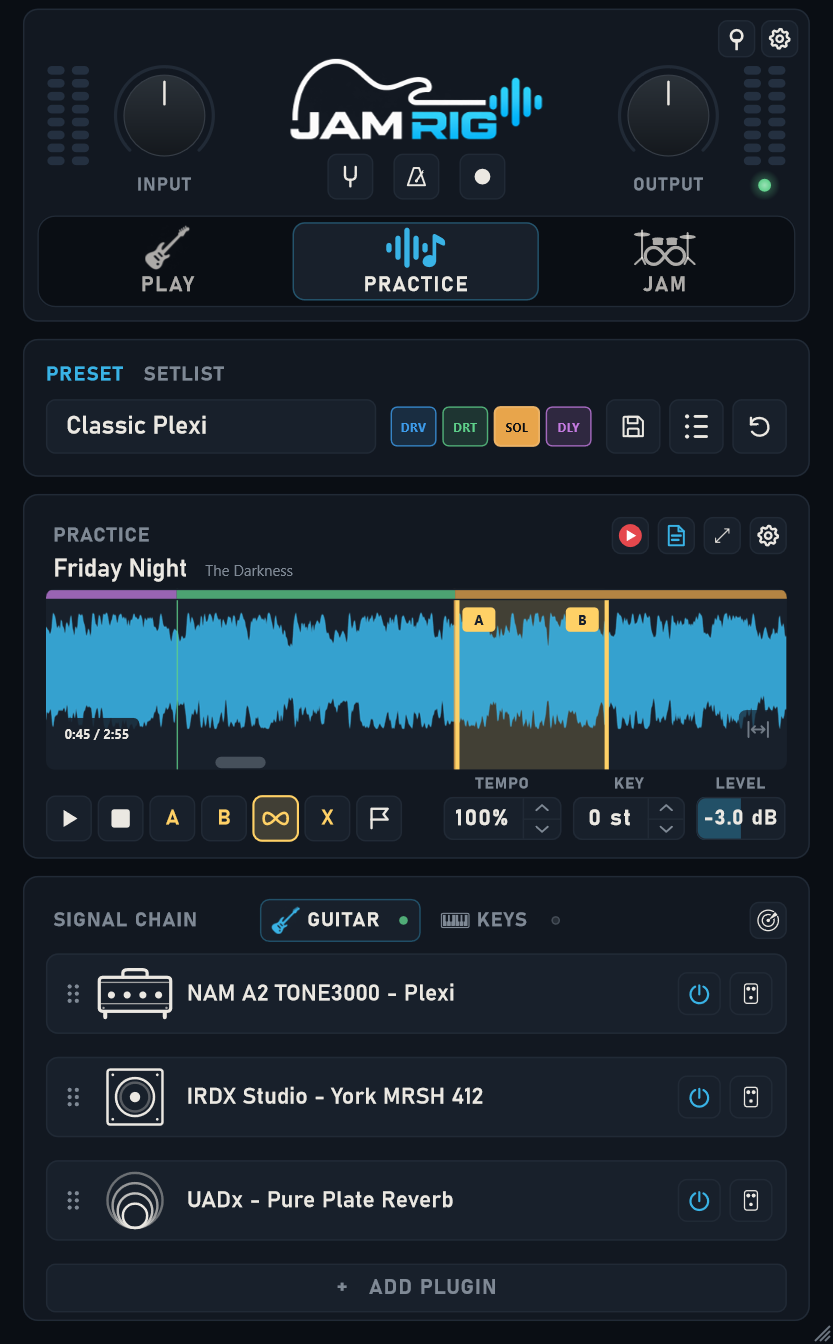
In Practice Mode, connect the rig to a song and add a local backing track. Set an A/B loop around a difficult passage, slow it down, and practice with the same saved sound. You can also keep lesson and tab links with the song. See the practice workflow for the full sequence.
A NAM plugin, IR loader, and reverb use three plugin slots. The trial includes Play and Jam with up to three plugins per chain; Practice unlocks with activation.
Check the rig before adding more effects
- Harsh sound: check whether an amp-only capture needs a cabinet or IR.
- Muffled sound: check whether the capture already includes a cabinet and you have added another.
- The model disappears after reopening: check the file path and the plugin’s model-loading requirements.
- The model will not load: verify that the plugin supports that capture’s format and version, including A2 support for NAM A2 models.
- Audio breaks up: try the NAM plugin on its own, then add other effects one at a time.
The Neural Amp Modeler plugin project documents its VST3 format and platform requirements. Compatibility still depends on the plugin build, capture, and your setup; use the trial to check the rig you rely on.